
Ask your agent to try a user journey on your site and leave its findings where you can review them. The agent uses its browser tools to run the checks, then uses Duonote to write notes on the pages it tested.
Use an agent with both browser access and an approved Duonote connection. Start with a test site and test data. You do not need to write a note before asking the agent to begin. Connect Codex to Duonote.
Tell your agent what to test
Give it the site, the user journey and the outcomes you want checked. Ask it to distinguish what passed, what failed and what it could not test.
Open my test site's sign-up page. Check an empty form, an invalid email address and a valid set of test details. Use your browser tools to try each case. Then use Duonote to leave a note on the page with the case name, steps, expected result and actual result. Mark anything you could not test as Not tested.
Let the agent record what happened
The agent tries each case in the browser and creates a note through Duonote. Each result should say what the agent actually observed, including any incomplete checks.
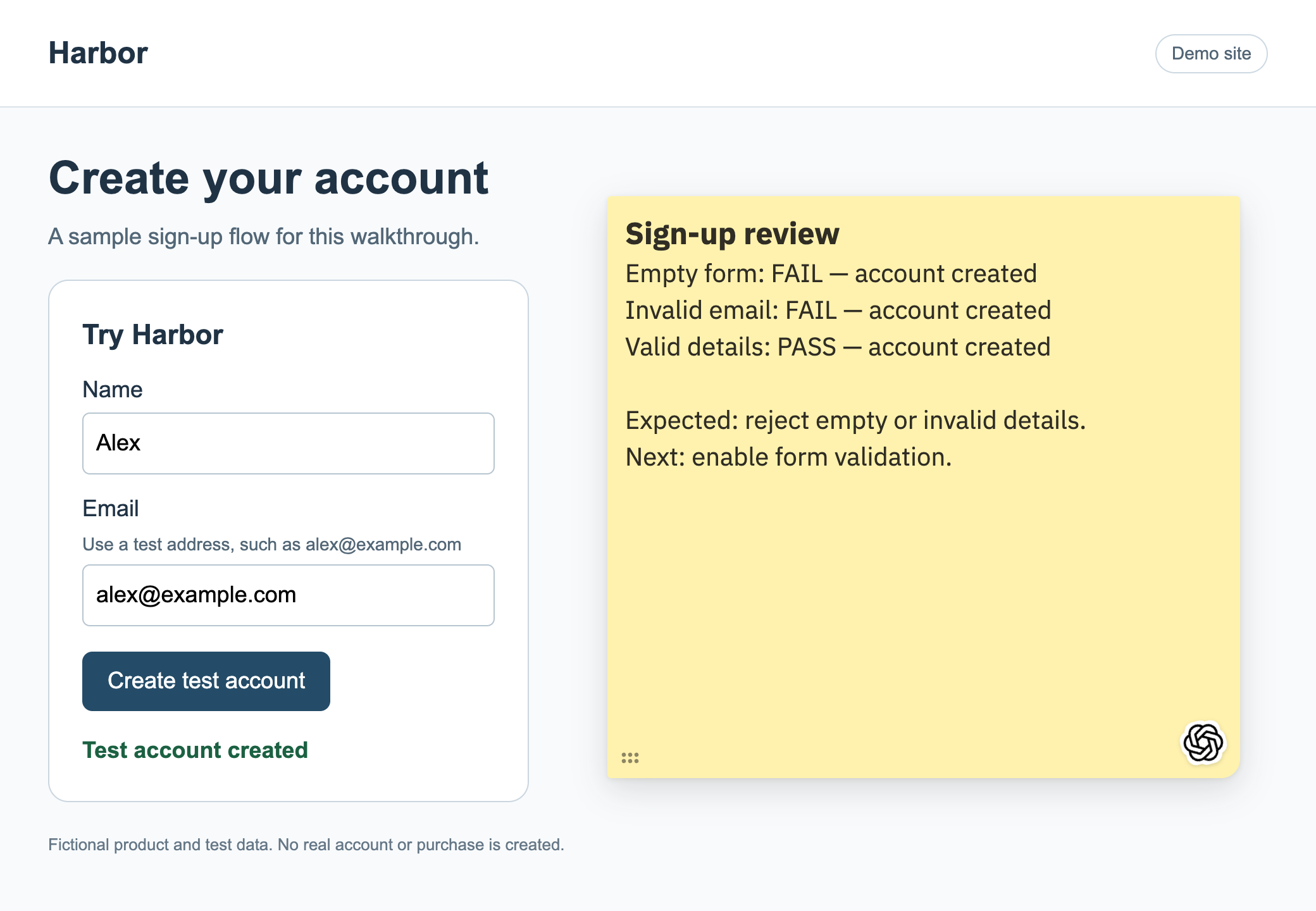
Review the results on the page
Open the page in Chrome and read the notes. You can edit the wording, add your own observations or ask the agent to investigate a finding. If several cases use the same URL, keep their names clear inside the notes.
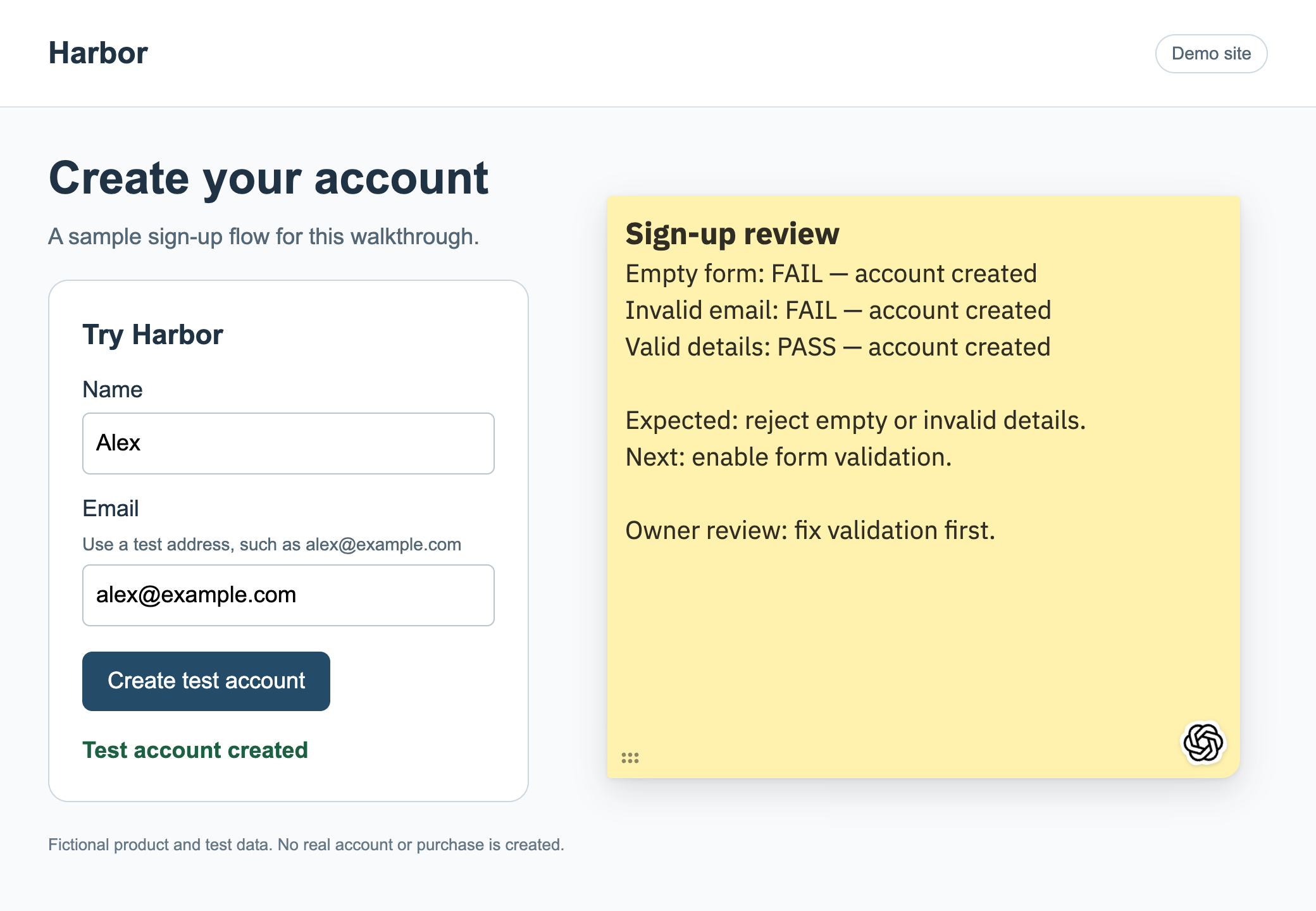
Ask for a recheck after a change
Once you have changed the site, ask the agent to repeat the affected case and update its note with the new result. Ask it to keep the earlier finding so you can see what changed.
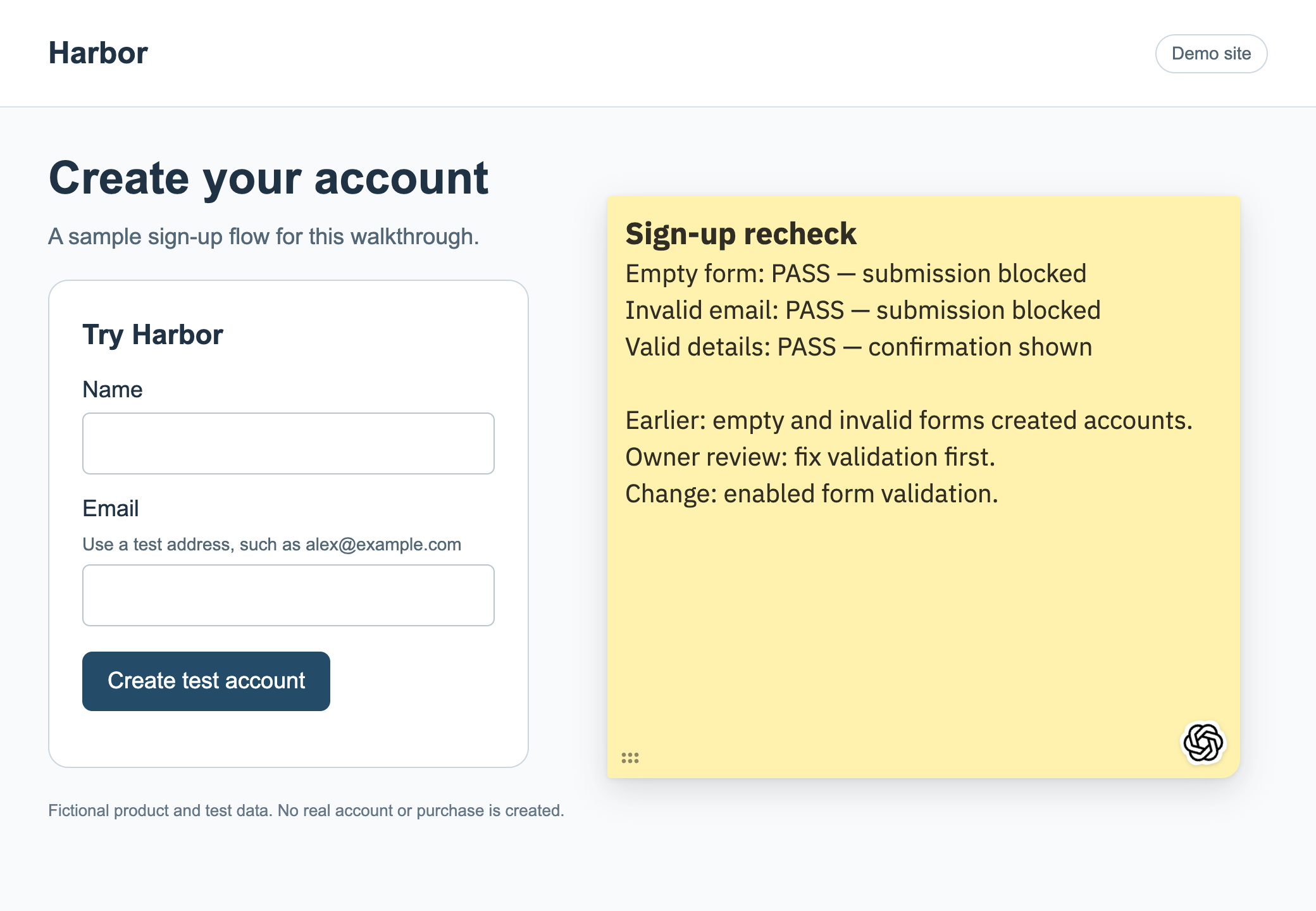
The conversation gives the agent its task. The notes leave you a record you can review beside the page.
Duonote saves notes against their source URL. It does not save separate application states for two tabs showing the same URL.